

Last updated: November 2026. Based on Microsoft’s Windows 10 pages, read 17 and 22 November 2026. Prices and options can change, so check Microsoft’s page before you buy. Disclosure: no affiliate links.
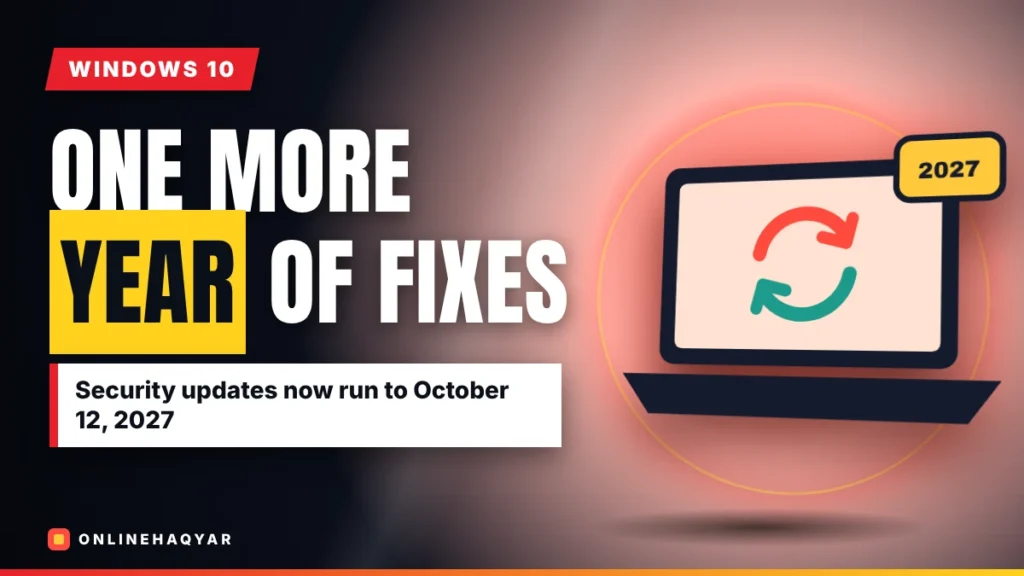
If your PC still runs Windows 10, you have probably seen warnings that support has ended. That’s true, but it isn’t the whole story. Microsoft’s Windows 10 ESU (Extended Security Updates) programme for home users now runs for one more year, so an enrolled Windows 10 PC keeps receiving security fixes until October 12, 2027.
This guide explains what changed, what ESU covers, whether your PC qualifies, how to enroll and how to use the extra year wisely.
What actually happened
Official source (Microsoft, end of support page): “On October 14, 2025, Windows 10 support ended.” That means no new features, general fixes or free technical help. Microsoft says you can stay on your Windows 10 device by enrolling in the Extended Security Updates programme to stay protected through October 12, 2027. (Microsoft: End of support)
Source (BleepingComputer, June 25, 2026): BleepingComputer reported that Microsoft extended the consumer programme by one year; the previous end date was October 12, 2026. (BleepingComputer)
Official source (Microsoft, ESU page, read 22 November 2026): The consumer programme “ends on October 12, 2027.” (Microsoft: Windows 10 Extended Security Updates)
Author’s analysis: If you enrolled last year, you don’t need to start over. Keep Windows Update running and check that updates are still installing (see “How to check you’re covered” below).
What Windows 10 ESU gives you, and what it doesn’t
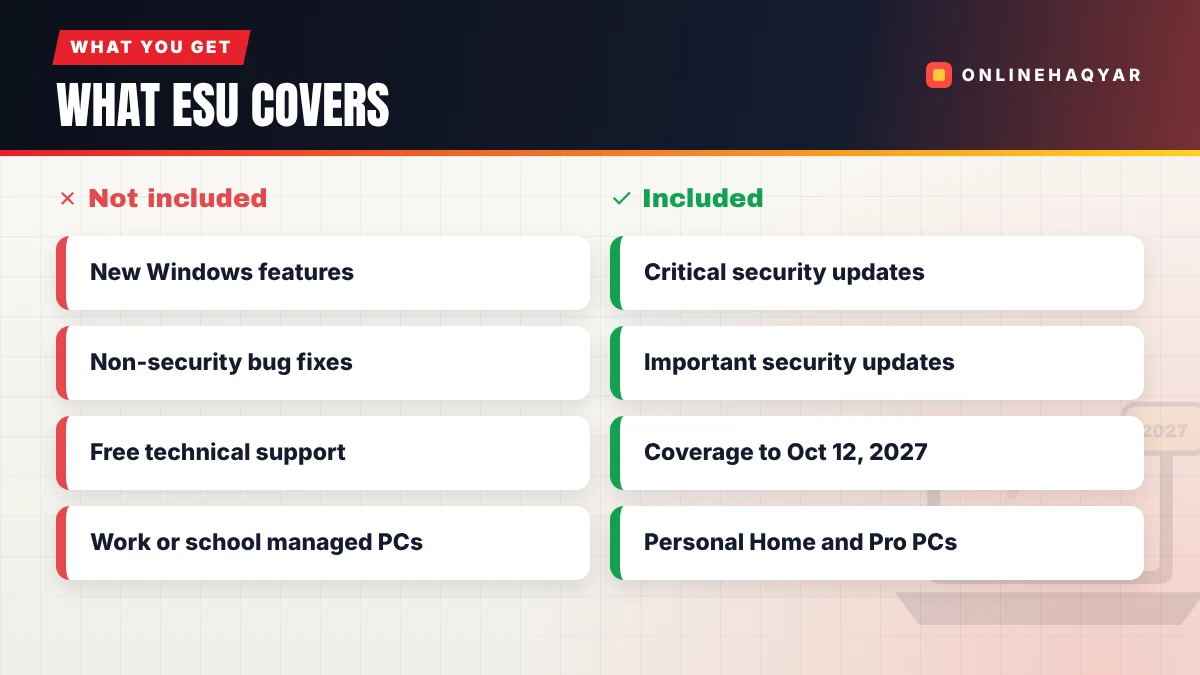
Official source (Microsoft): ESU delivers critical and important security updates only. It does not include new features, non-security fixes or technical support.
Author’s analysis: Think of ESU as a seatbelt, not a new car. It reduces the risk of known security holes being used against you, but apps and devices will gradually stop supporting Windows 10 regardless.
Does your PC qualify?
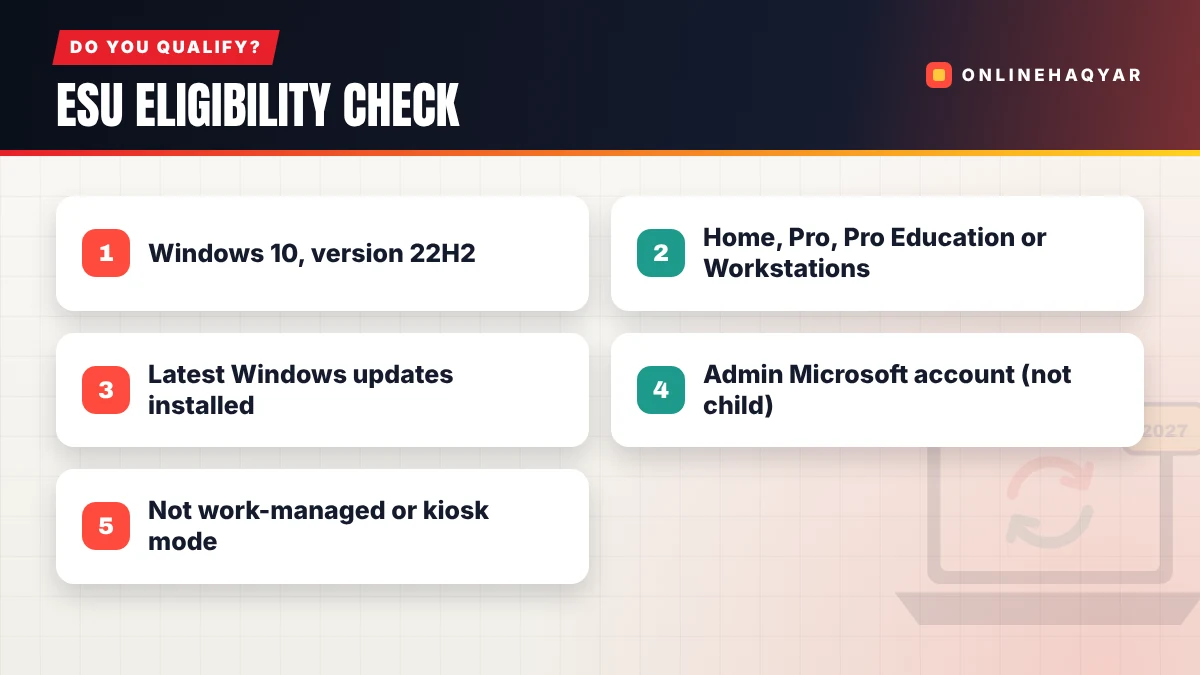
Official source (Microsoft ESU page): Microsoft lists these requirements:
- Windows 10, version 22H2, in the Home, Pro, Pro Education or Pro for Workstations edition.
- The latest Windows updates installed. Microsoft names the Windows 10 ESU Licensing Preparation Package, KB5126256, as required.
- The Microsoft account used to sign in must be an administrator account, and it can’t be a child account.
- Not available for devices in kiosk mode, or PCs joined to an Active Directory domain, managed by Microsoft Entra or enrolled in mobile device management. Microsoft Entra registered devices can use consumer ESU.
In plain terms: this programme is for personal PCs, not company-managed ones.
Author’s tip: To check your version, press Windows key + R, type winver and press Enter. The window shows your version; look for 22H2.
Three ways to enroll in Windows 10 ESU
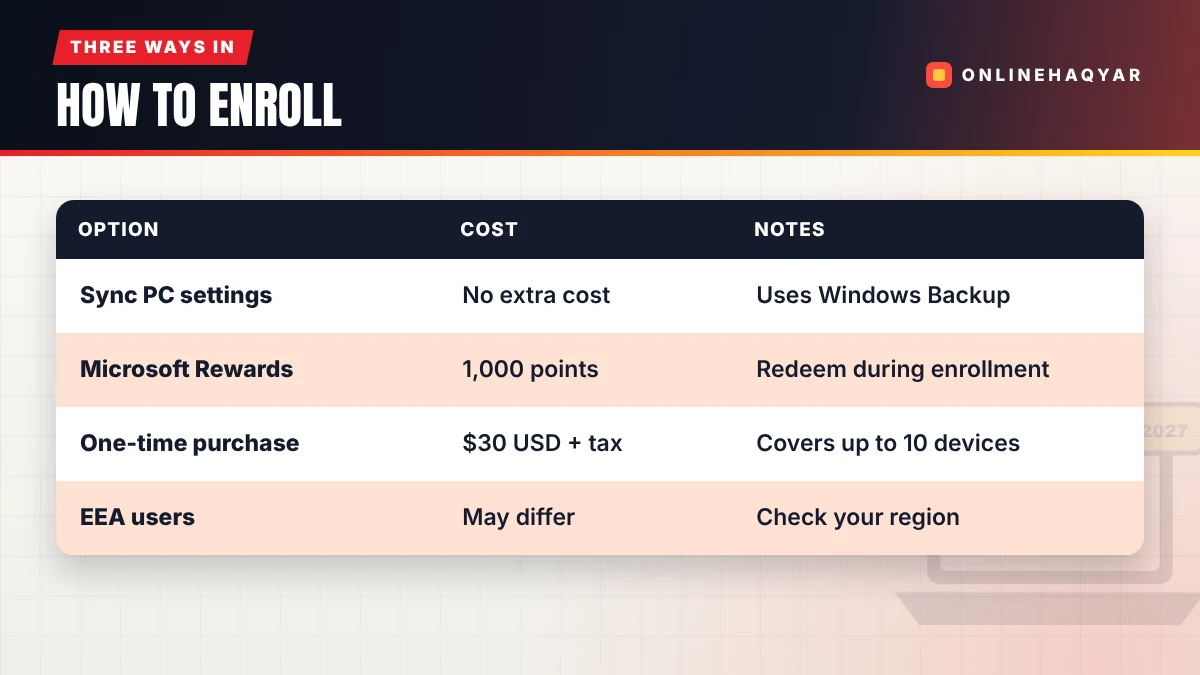
Official source (Microsoft ESU page): You can enroll:
- At no additional cost if you sync your PC settings (Windows Backup to your Microsoft account).
- By redeeming 1,000 Microsoft Rewards points.
- With a one-time purchase of $30 USD (or the local currency equivalent, plus applicable tax). Microsoft says you can use one ESU licence for up to 10 devices.
Regional note (Microsoft): Microsoft says “enrollment options and timing may vary by region, such as in the European Economic Area (EEA).” If you’re in the EEA, check the options shown on your own PC and on Microsoft’s page for your country.
How to enroll, step by step
Official source (Microsoft ESU page):
- Open Settings → Update & Security → Windows Update.
- Select Enroll now when the ESU option appears.
- If you use a local account, Windows will ask you to sign in with a Microsoft account.
- Choose one of the three options above and follow the prompts.
Author’s tip – if you don’t see “Enroll now”: install all pending updates and restart, confirm you’re on 22H2, and make sure you’re signed in with an administrator account. If the PC is a work device, ask your IT team, because consumer ESU won’t apply.
How to check you’re covered
Author’s analysis: After enrolling, go back to Windows Update. It should show that the PC is enrolled, and monthly security updates should continue to install. Note the date of the last successful update. If it stops changing month after month, revisit the enrollment screen.
Should you upgrade to Windows 11 instead?
Official source (Microsoft): “Enrolling in ESU does not prevent you from upgrading your PC to Windows 11,” as long as the PC meets the hardware requirements. Microsoft points to its PC Health Check app to test eligibility.
Official source (Microsoft end of support page, read 17 November 2026): If your PC is eligible, Microsoft says the upgrade to Windows 11 is free through Windows Update, and it suggests Windows Backup or OneDrive to move files and settings. It also says Microsoft 365 apps on Windows 10 get security updates until October 10, 2028.
Author’s analysis – a simple decision guide:
- PC is eligible for Windows 11: back up, then upgrade when convenient. Use Windows 10 ESU only if you need time, for an old app or a busy season.
- PC isn’t eligible but works well: enroll in ESU now and plan a replacement before October 2027. Spreading the decision out avoids a rushed purchase.
- PC is old and slow anyway: ESU buys time, but a replacement may be the better use of effort. Watch for genuine sales rather than buying in a panic; our guide on whether a Black Friday discount is real shows how to check.
Protect the rest of your setup
Author’s analysis: Security updates fix Windows itself. They don’t protect a reused password or an account without multi-factor authentication. While you’re in Settings, it’s a good moment to set up a password manager (see our password manager vs browser comparison) and back up your files. If you’re also setting up new devices this season, use our new tech security setup checklist.
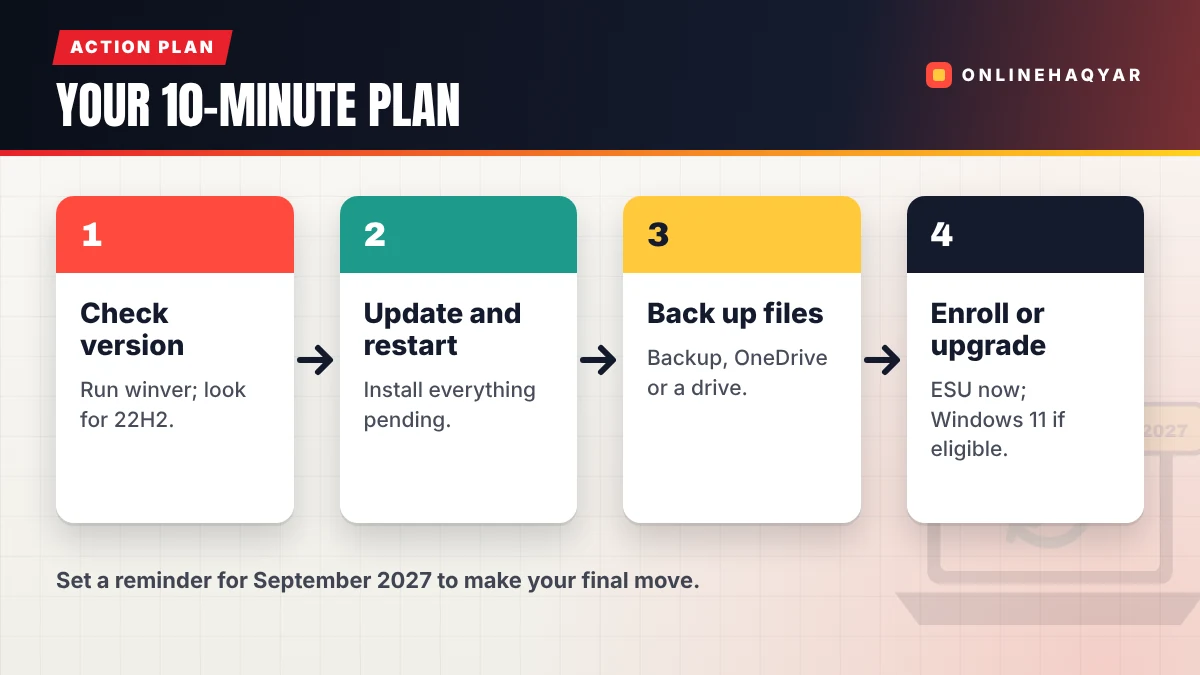
A 10-minute action plan
- Run
winverand confirm 22H2. - Install all updates and restart.
- Back up your files with Windows Backup, OneDrive or an external drive.
- Enroll in ESU via Settings → Update & Security → Windows Update.
- Run PC Health Check to see if Windows 11 is an option.
- Set a calendar reminder for September 2027 to make your final move.
Frequently asked questions
Is Windows 10 still getting updates?
Only security updates, and only for PCs enrolled in Windows 10 ESU, until October 12, 2027, according to Microsoft.
Is Windows 10 ESU free?
It can be. Microsoft lists enrollment at no additional cost when you sync your PC settings, or with 1,000 Rewards points, or a one-time $30 USD purchase. Options may differ in the EEA.
Can I still upgrade to Windows 11 after enrolling?
Yes, if your PC meets the hardware requirements. Microsoft says enrolling in ESU doesn’t prevent an upgrade.
Does ESU work on my work laptop?
Not if it’s joined to an Active Directory domain, managed by Microsoft Entra or enrolled in mobile device management. Ask your IT team.
The bottom line
Windows 10 isn’t instantly unsafe, but a Windows 10 PC that isn’t enrolled no longer gets security fixes. Enrolling in Windows 10 ESU takes a few minutes and protects you until October 12, 2027. Use that year to upgrade or replace your PC on your own schedule, not in a last-minute rush.